In Zencount a budget, a forecast, a scenario and your real numbers are the same shape — one model, told apart only by version. That means once you know how to create one version, you know how to create them all, and you can compare any two without re-mapping anything.
What a version is
A version is a named set of numbers over your account structure. Every workspace starts with an Actual version (where imported real figures land). You add your own versions on top — typically a yearly Budget, a rolling Forecast, and as many Scenarios (“Base”, “Growth”, “Worst case”) as you want to model.
Because every version shares the same structure, comparing a budget to a forecast later needs zero re-keying — see Compare two versions.
Create a plan
- Open Planning from the sidebar.
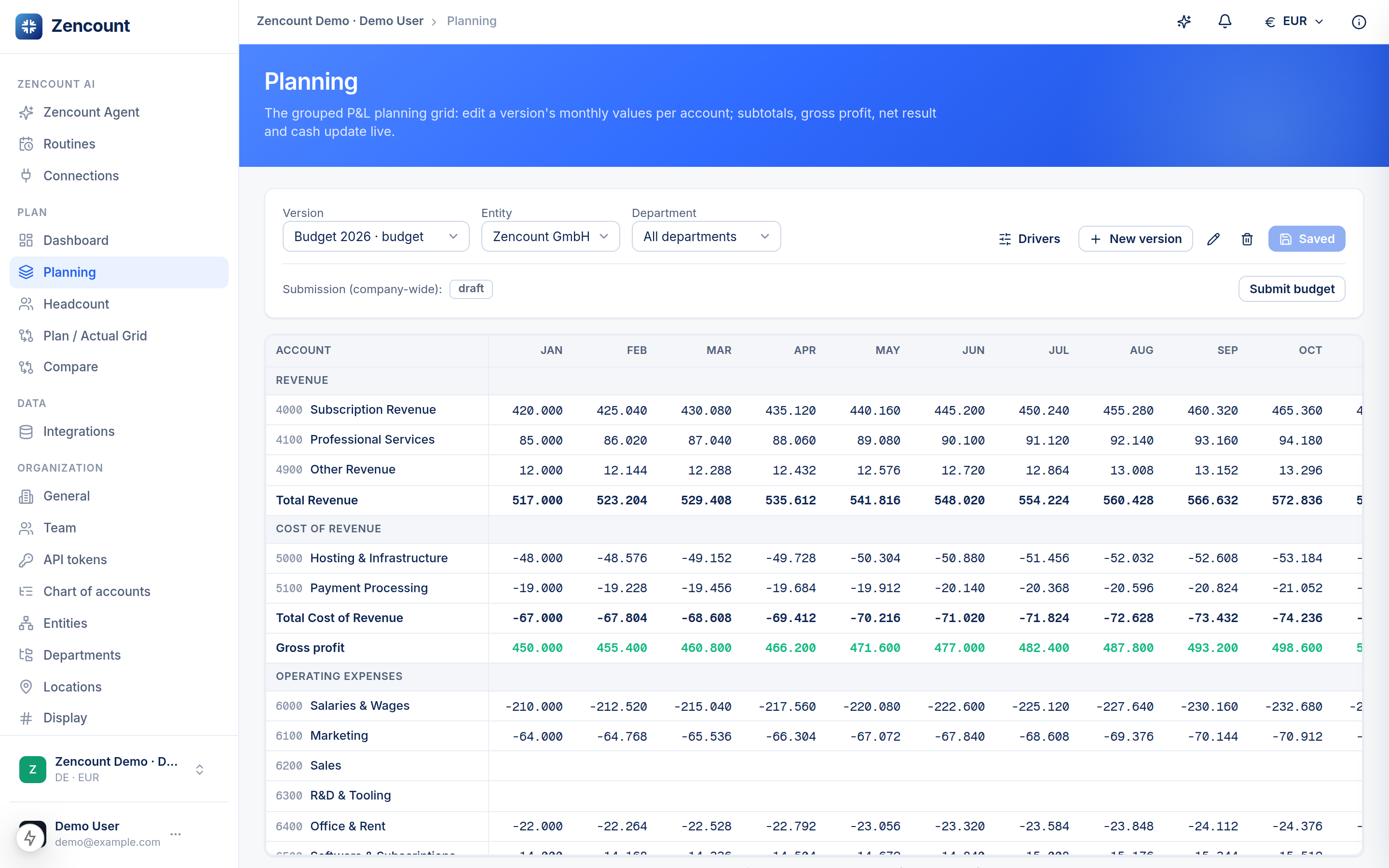
- Use the version picker at the top of the grid to create a new version — give it a clear name (e.g. FY26 Budget) and pick its type.
- Edit the grouped P&L directly: Revenue → Cost of Revenue → OpEx → Tax & Financing, with subtotals, gross profit, net result and end-of-month cash calculated for you.
- Enter your numbers and save — edits are batched, so you can fill a whole row and commit in one go.
Lock it when it’s approved
Once a budget is signed off, lock the version so it can’t drift. A locked version stays fully visible and comparable — it just can’t be edited until you unlock it.
Your data never leaves your workspace. Versions are isolated per organization at the database level (row-level security), so other companies on Zencount can never see them.
Next steps
- Invite your team so colleagues can plan their slice.
- Compare two versions to see where your plan and forecast diverge.