Connect Personio to bring your headcount roster into Zencount. Each employee becomes a position in a planning version — with role, department, location, FTE, salary and start/end month — and payroll cost is built automatically from the real org instead of a spreadsheet. Re-run it any time; it updates in place.
Before you start
Create a read-only API credential in Personio (Settings → Integrations → API credentials) and grant it only the employee attributes you want to import. Personio returns only the attributes you whitelist — so you share exactly what Zencount needs and nothing more. Whitelist:
- First name, Last name, Personnel number
- Position, Department, Office, Subcompany, Employment type
- Weekly hours, Hire date, Contract end
- The salary field (e.g. Fixed salary) — and, optionally, a variable/bonus field
1. Connect
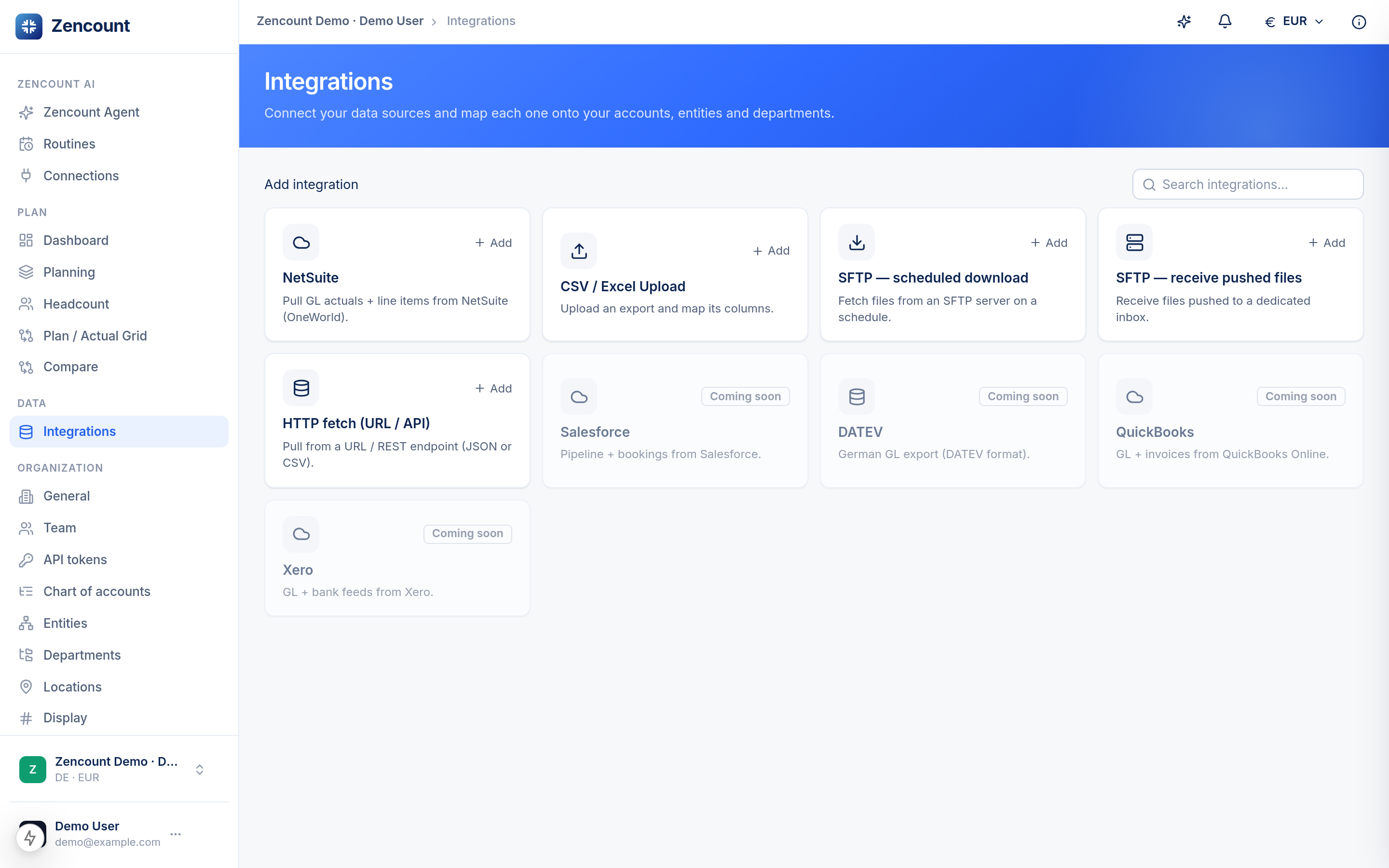
- Open Integrations from the sidebar and add Personio.
- Paste the Client ID and Client Secret, then Test connection to confirm it works. That's all Connect does — what your fields mean, and where the data lands, is decided in the next steps.
2. Discover
Run discovery. Zencount reads your directory and saves a snapshot of what it found: every readable field with its label, type and a real example value from your data (so you can recognize what a field is at a glance), the distinct departments, offices and subcompanies to map, and — importantly — which needed attributes your credential can't read yet, so you can widen the whitelist before importing. Values that name-match an existing entity, department or location are mapped automatically. Example values stay in your workspace — the AI suggestion only ever sees each field's aggregate shape (a rounded median, a year range), never an employee's value.
3. Field mapping
- The AI suggestion runs once by itself when this step opens: exact name/code matches apply automatically, and the AI proposes the rest — which field is your salary (and whether it's monthly or annual), your personnel number. Every suggestion carries a confidence and can be changed. If it guessed wrong, re-run Suggest mappings with a hint (e.g. "salary is dynamic_555, monthly"). If you've set fields manually, it asks whether to keep them or re-map everything.
- Review Fields → your model: one row per Zencount position field (title, salary, hire date, …) with the Personio field that feeds it. The small eye icon next to a mapped field reveals its real example values on hover — and in the Discover step the ‹ › example-record pager steps through whole real records. Below the base fields: your Zencount custom fields (every position custom field you've defined in Settings → Custom fields is a row — map a source onto it or leave it manual), a Not imported section listing every leftover source field (each with its own sample peek), and the interpretation settings: full-time weekly hours (→ FTE), default on-cost %, contractor types and which statuses to import.
4. Value mapping
Map the source values: Personio subcompany → entity, department → department, office → location — one table per dimension, every discovered value as a row (unmapped first) with a searchable picker and an origin badge, exactly like the field mapping. Values that don't exist in Zencount yet (a new subsidiary, a new office) are fine to leave unmapped: map them once their master data exists, or let the fallback entity catch them. Anything left unmapped is reported in the sync preview with its consequence (never guessed).
5. Sync
- Pick the Destination version (first block) — the version the roster feeds. Recommended: the Actual version — it stores the real org as facts (no payroll is derived there; booked payroll keeps coming from your accounting), and every plan version can then start from it. A planning version works too; only locked versions are refused. Below it, the fallback entity: it only catches employees whose subcompany has no value mapping — when everything is mapped, it stays dormant (the block tells you).
- Preview (dry-run) first — it renders a table of the first rows exactly as they would land, with every imported column (new / update / skip, resolved entity, department, location, FTE, employment type, salary, variable %, on-cost %, start/end and your mapped custom fields — scroll sideways for the rest), and lists unmapped values with their consequence, without writing anything. If your role can't write to one of the targets, the preview says so in red right at the buttons — before an import would be refused.
- Import to roster when it looks right. Positions are upserted per employee number, and payroll is recomputed on the salary account in Planning.
- Optionally switch on Automatic sync: toggle it on, pick daily, weekly or monthly — weekly on the weekday you choose, monthly on the day of the month (the 29th–31st simply run on the last day of shorter months) — plus the time of day (your local time), save. The same import re-runs headlessly, the run history lists every run (click one for its full record), and you get a notification if a run fails or hits unmapped values.
Good to know
- Start and end dates are month-grained (no day proration).
- An employee with no resolvable entity, no position title or no hire date is skipped and reported.
- Salaries import in the destination entity's currency; the employer on-cost % comes from the mapped location's default.
- Sync into Actual, hit Start from the Actual roster in an empty plan version, then compare plan against reality.
Next steps
- Plan your headcount — edit or extend the imported roster.
- Salaries, ramps & loaded cost — how the monthly cost is built.
- Connect a data source — the general integration flow.