Planning is a team sport. You can invite colleagues into your workspace, give them the right role, and — when you need to — scope them to just the part of the business they own.
Send an invite
- Go to Settings → Team.
- Enter the colleague’s email and choose a role.
- They receive a magic-link invite. New members start as pending until they accept and an owner or admin approves them.
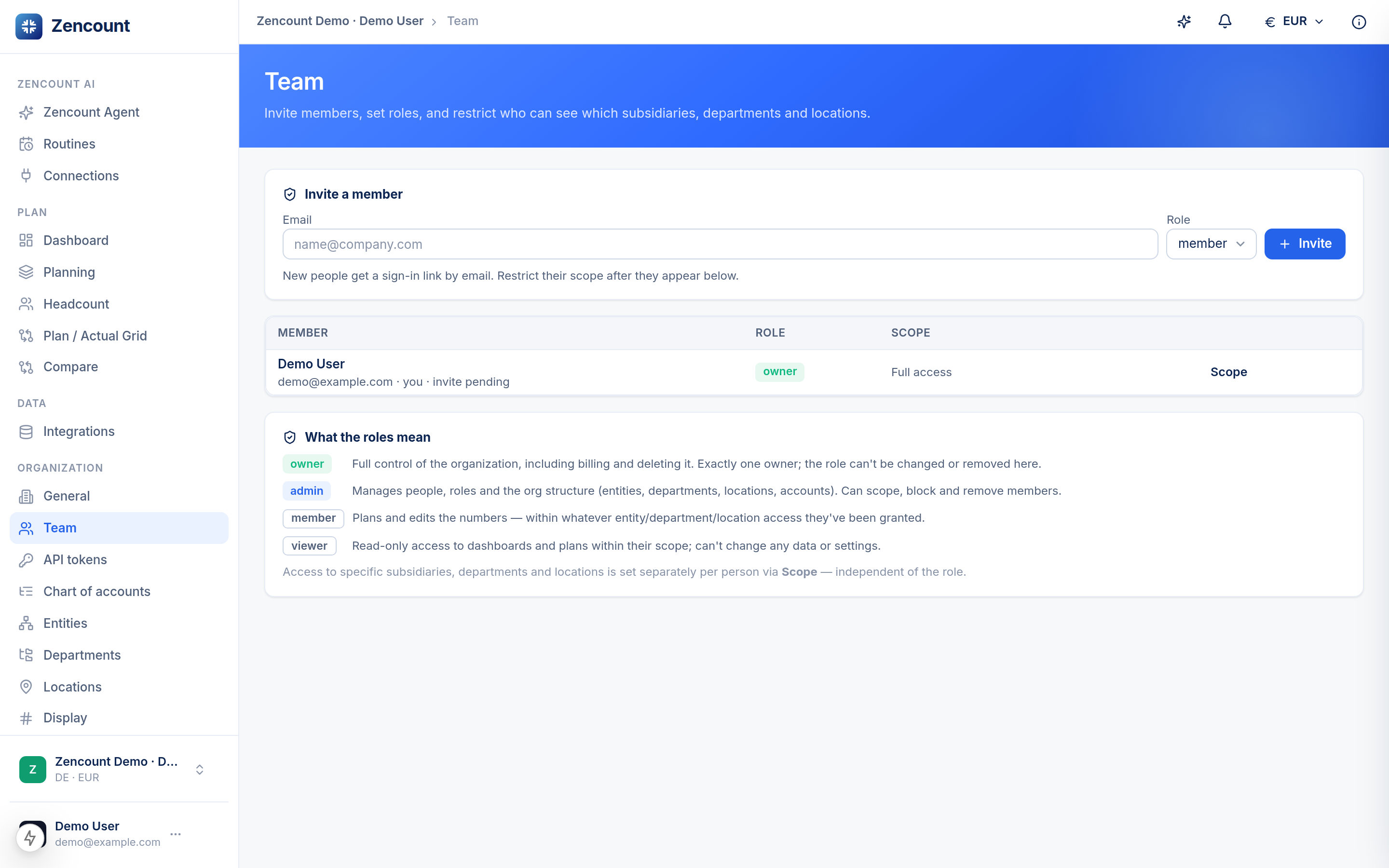
Roles
| Role | Can do |
|---|---|
| Owner | Everything, including billing, deleting the workspace and managing members. |
| Admin | Manage members and all planning data. |
| Member | Work with planning data within any scope they’re given. |
Scope a member to their part of the business
Sometimes a department head should only see their slice. You can scope a member to a specific entity, department or location — they’ll plan and view only that, not everyone else’s numbers.
Scoping is enforced at the database level, not just hidden in the UI. A location-scoped member’s pickers and totals only ever include their own site — there’s no way to read around it.
Next steps
- Create your first plan to give the team something to work on.